Maintenance
Upkeep any operator can finish
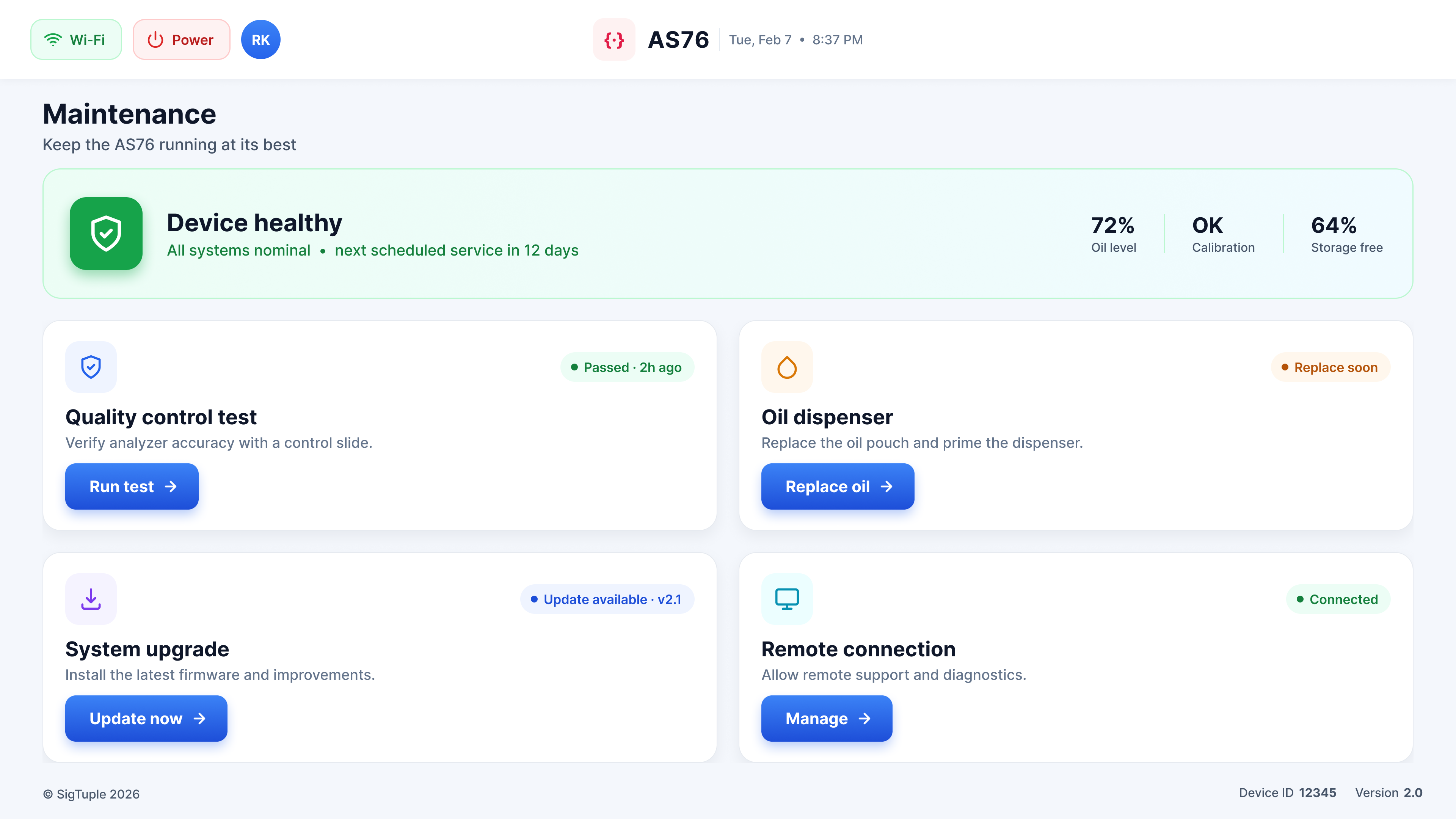
A health banner leads with device status and supply levels; each task opens into a numbered wizard that waits on the hardware and offers help at every step.
The AS76 hematology analyzer's on-device touchscreen, designed for gloved hands, glanceable status, and confident recovery when a scan goes wrong.
The AS76 sits on a crowded bench in a busy lab. Whoever walks up to it is mid-task, often gloved, and rarely the same person twice.
The screen has to be read in a glance and trusted without training.
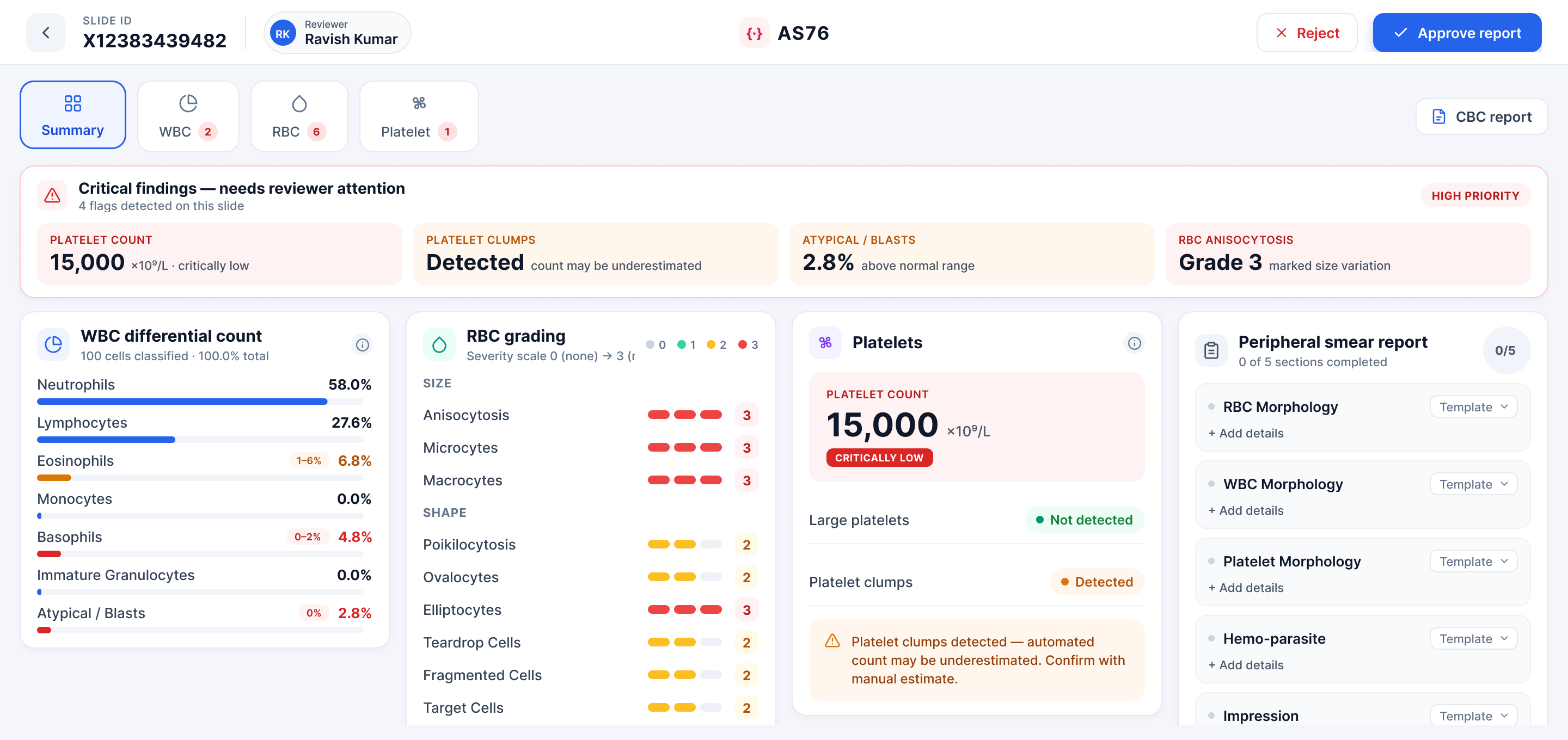
Make the next action obvious at every moment, size every control for gloved fingertips, and surface device health and scan errors loudly enough that nothing slips, without burying the operator in clinical detail that belongs on the reviewer console.
Every screen opens on what the device is doing and what it needs next.
Primary actions are large, spaced, and reachable without a second tap.
Failures, flags and low supplies use colour and count so nothing is missed.
Maintenance and re-runs are step-by-step, so any operator can finish them.
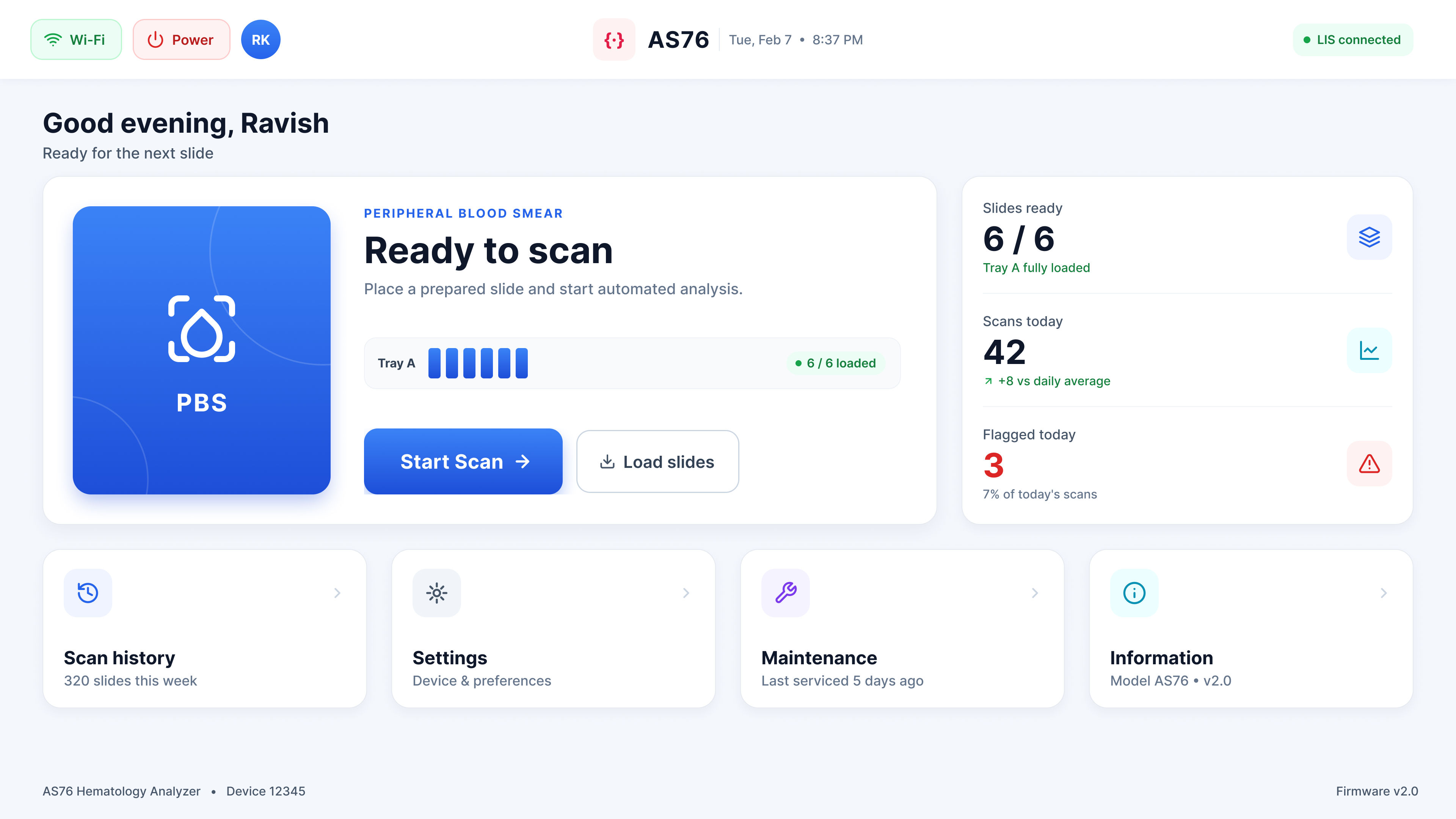
A single PBS action dominates the screen; slides ready, scans today and flagged counts sit to the side, and the four utilities, history, settings, maintenance, info, stay one tap away.
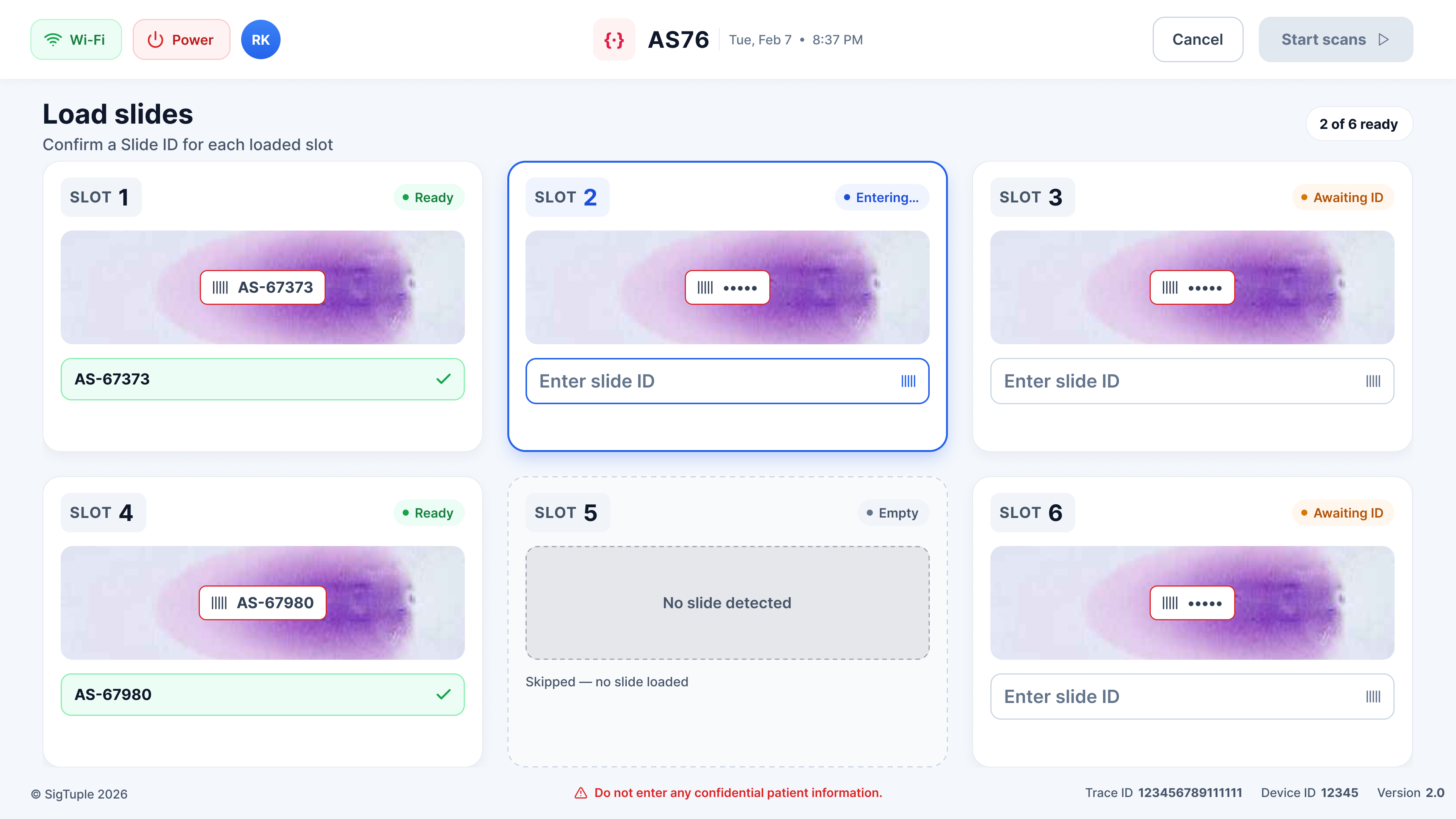
Each tray slot shows its detected barcode and live status, Ready, Awaiting ID, Entering, or Empty, so the operator confirms a Slide ID per slot and can't start a run with an ambiguous slide.
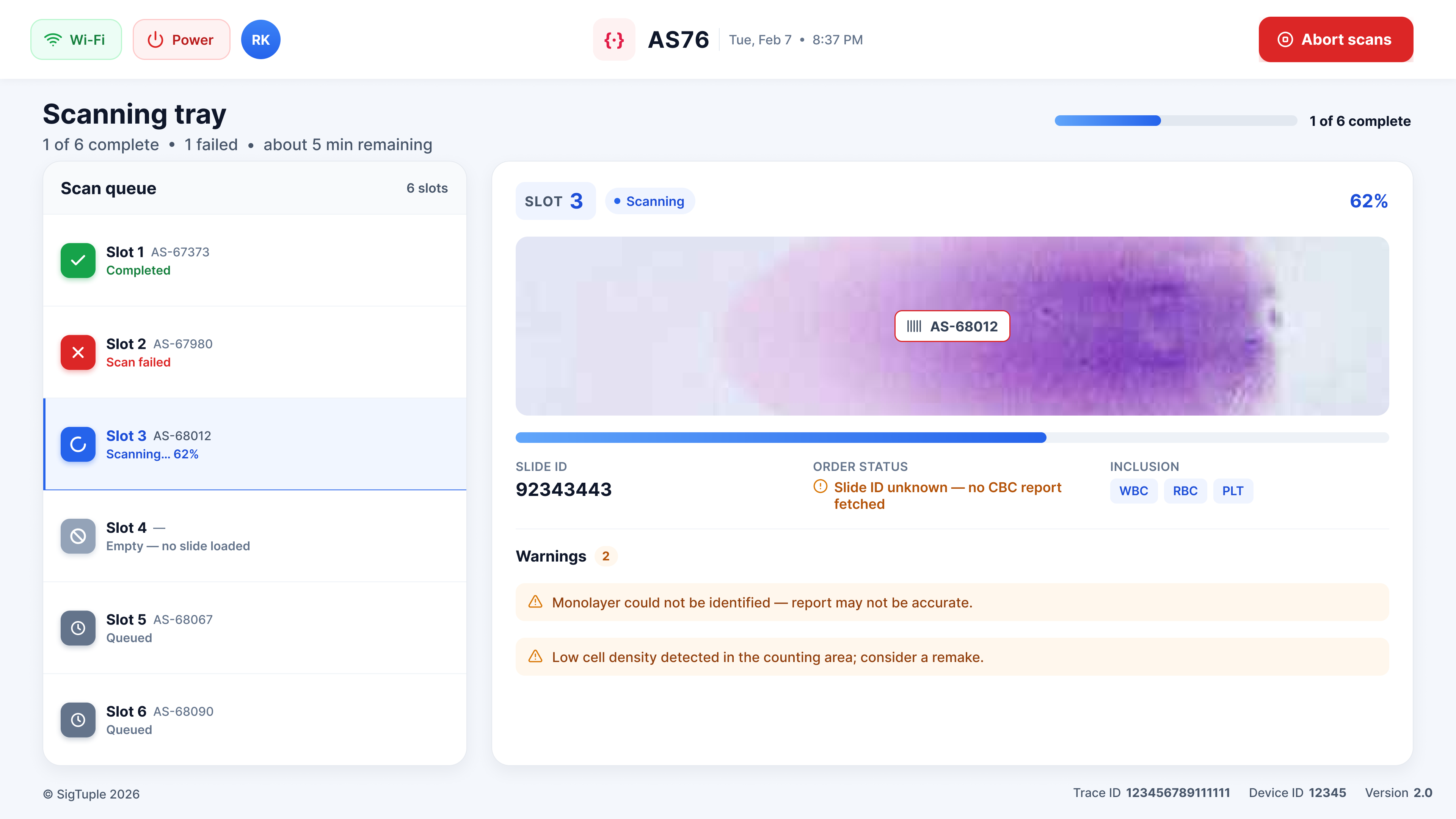
The scan queue tracks each slot, completed, failed, scanning, queued, empty, beside the active slide's preview, percent, inclusions and any warnings, with Abort always in reach.
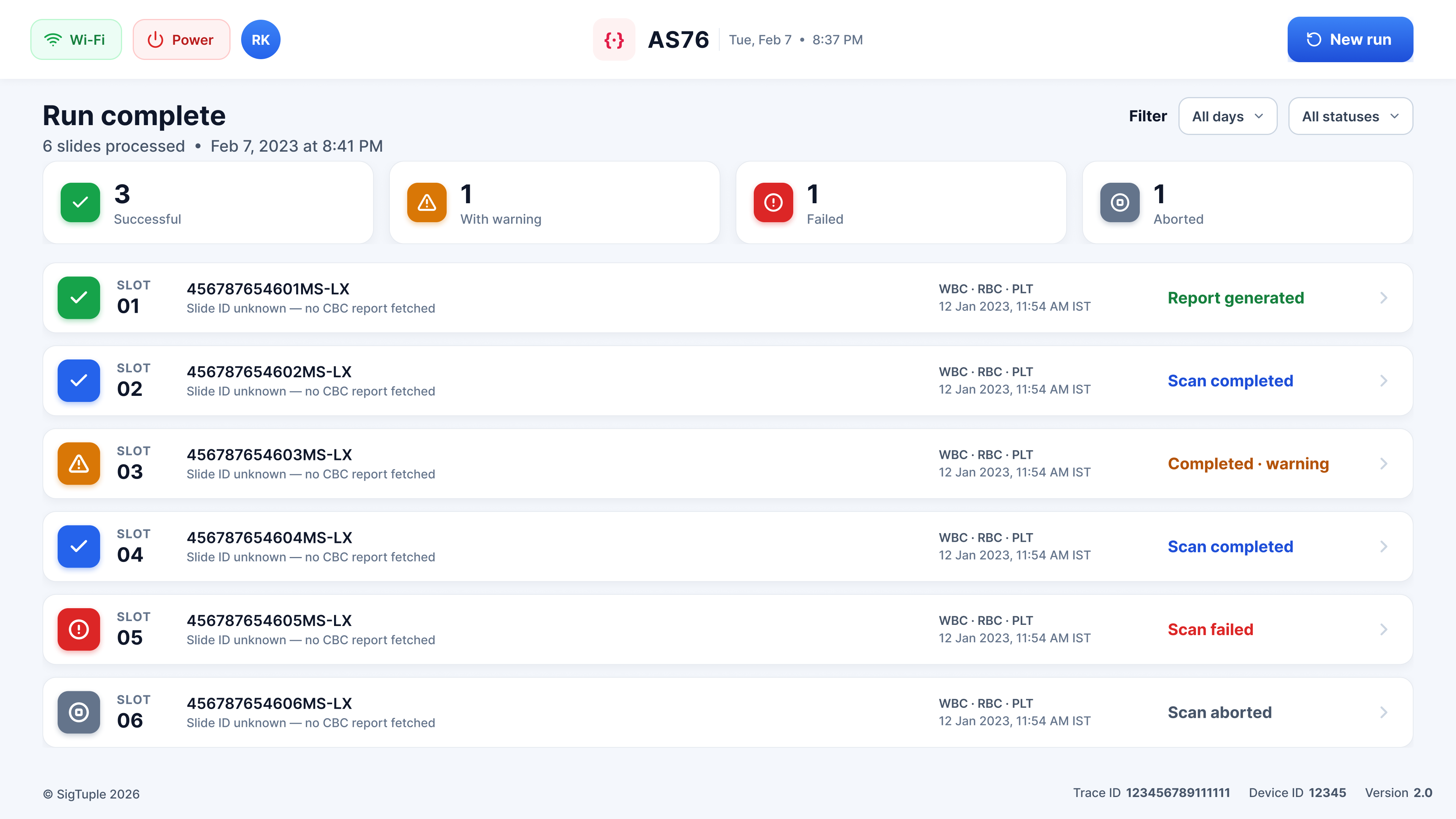
When a run finishes, four tallies, successful, warning, failed, aborted, head a per-slot list with colour-coded outcomes, so the operator knows what to re-run before they walk away.
A health banner leads with device status and supply levels; each task opens into a numbered wizard that waits on the hardware and offers help at every step.
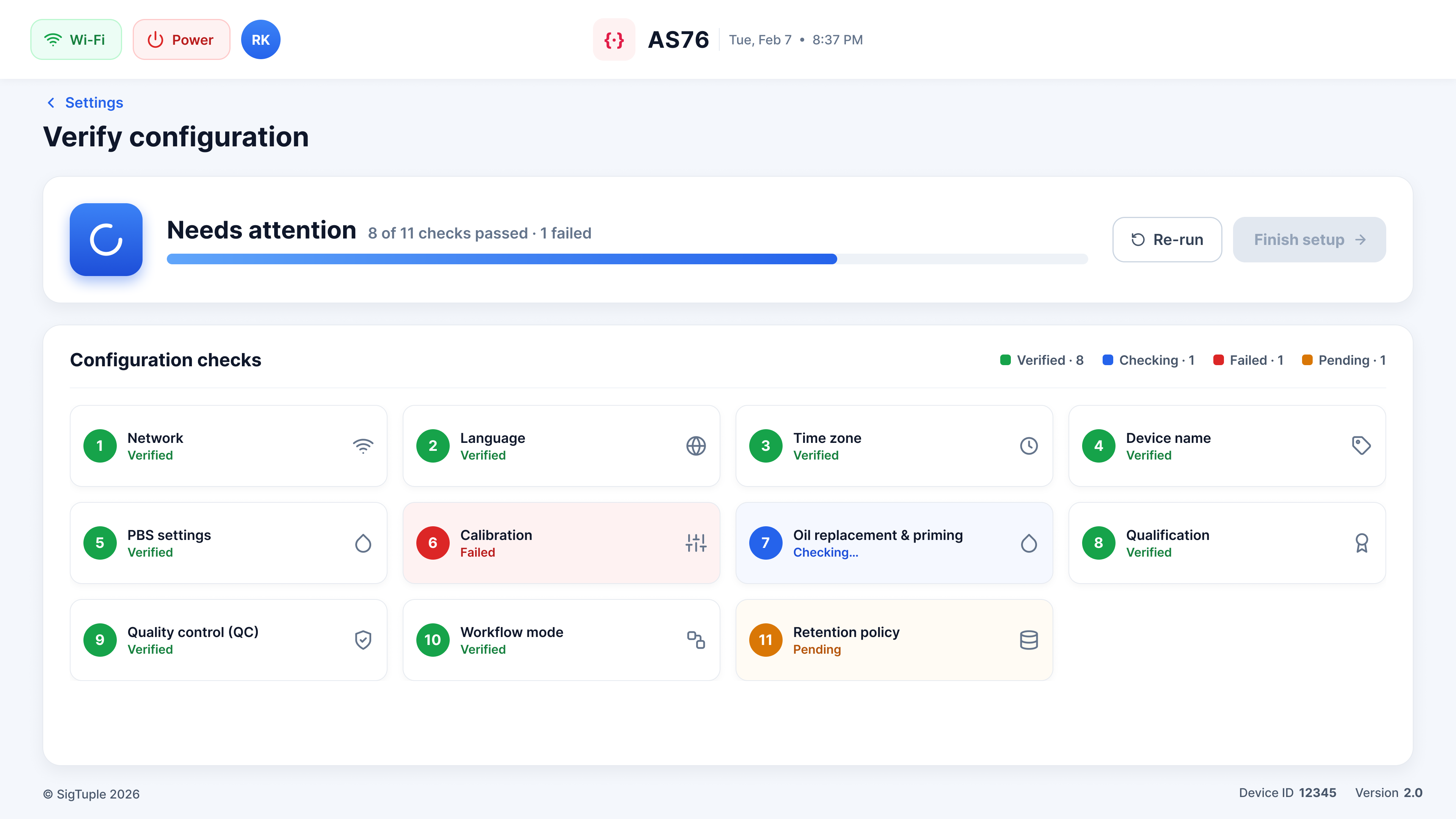
Commissioning runs through network, calibration, QC, oil priming and more, each tile clearly Verified, Checking, Failed or Pending, and the device won't finish setup until every check is green.
 ↗
↗